This page shows the exact export settings I use so videos come out sharp, smooth, and platform-ready.
CapCut Export Settings Screenshot
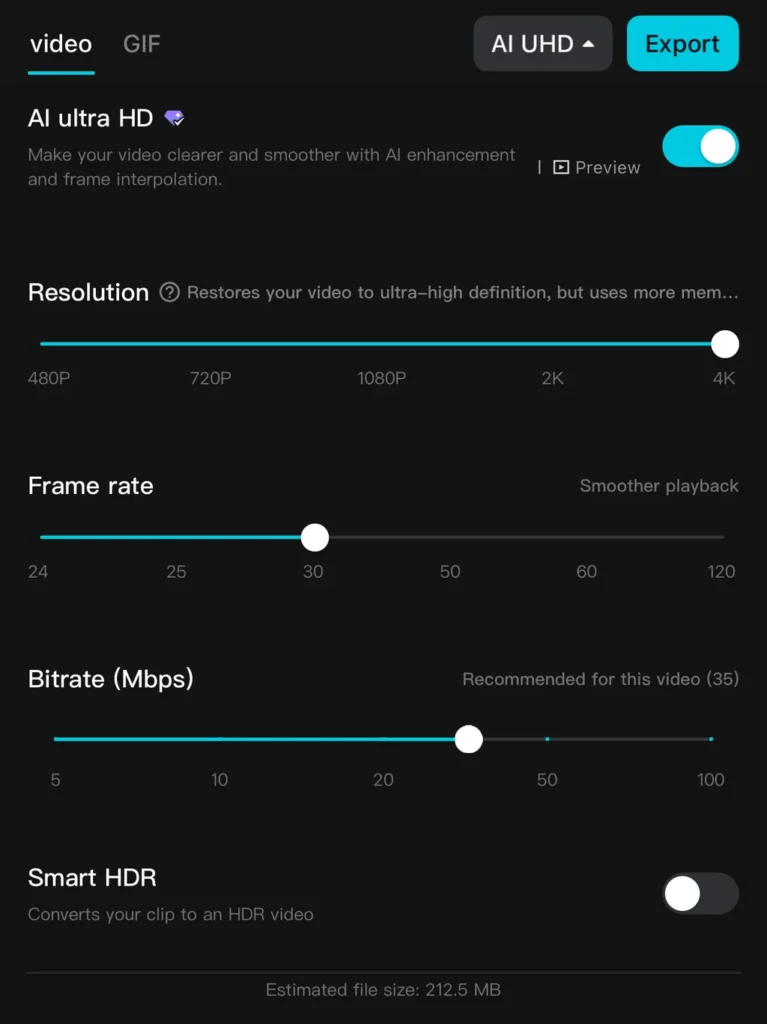
Mobile Export Settings
Below are the export settings I use on mobile when editing in the iPhone CapCut app.
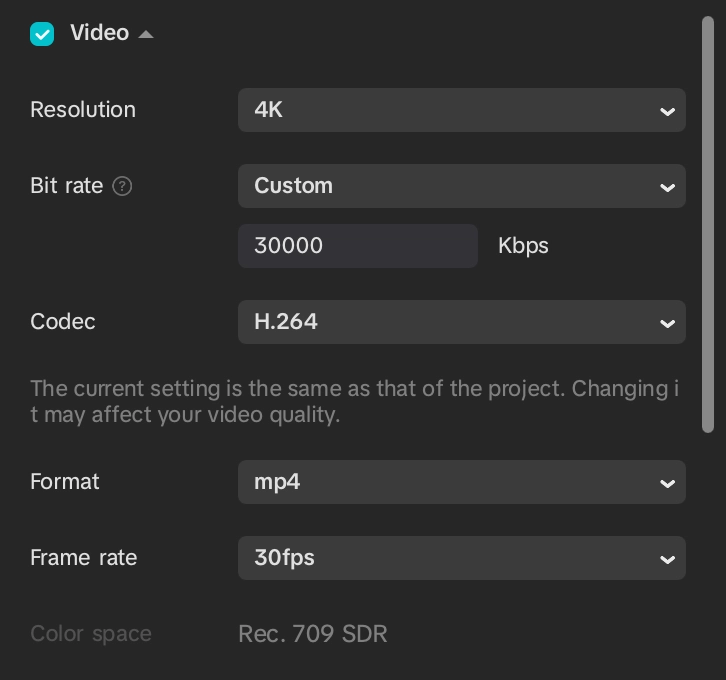
Desktop App Export Settings
The CapCut export settings on desktop the app allows for a additional drop-down where you are able to customize the bit rate.
What Each Setting Means (and what I use)
Resolution: Resolution is the size and sharpness of your video. I film in 4K, so I export in 4K. Your export resolution should match what you filmed in. If you filmed in 1080p, export in 1080p.
Frame rate (FPS): Frame rate controls how smooth the video looks. I export in 30fps because I film in 30fps. Your export FPS should match whatever you filmed in, like 60fps or 30fps.
Bitrate / Quality: Bitrate affects how much detail stays in your video. I use 30000 Kbps because it keeps the video sharp while keeping the file size low enough to reduce extra compression from TikTok and Instagram.
Format / Codec: This is the video file type and compression method. I leave mine on the default CapCut setting: MP4 and H.264.
Quick Checks Before Posting
Looks crisp (no blur) after upload preview
Audio is synced
No black bars / wrong aspect ratio
Captions are readable (safe margins)
Table of Contents
Unlock This Section
This section includes downloadable assets, video tutorials, and strategies you can use directly in your content.
Unlock full access to continue.