OVERLAYS & GRAPHICS

Overlays & Graphics: The Visual Polish

Overlays are one of the easiest ways to make content feel more elevated and visually complete.

The right overlay can help fill empty space, emphasize a moment, or add that extra layer that makes the content feel more finished.

In this section, you’ll find the overlay and graphic elements I use most often, plus guidance on when to use them so they enhance the edit (not distract from it).


Retention Overlays

These help emphasize a point and keep the screen moving.Below are the overlay/graphic elements included in this section:

Animated check mark

highlight strokes for emphasis

Arrow with a shadow

Animated emphasis doodles

Underline animations

Animated arrow

X mark animation

x mark animation

Animated emphasis doodles

Circle doodle

Light bulb doodle

Text Support Graphics

These make on-screen text feel more branded and intentional.

Animated search bar

Text card

Subtitle card

Sticky note card

Subtitle card

Doodle text card animation

Lifestyle / Creator Overlays

These make on-screen text feel more branded and intentional.

Camera animated graphic

Text card

iMessage text bubble

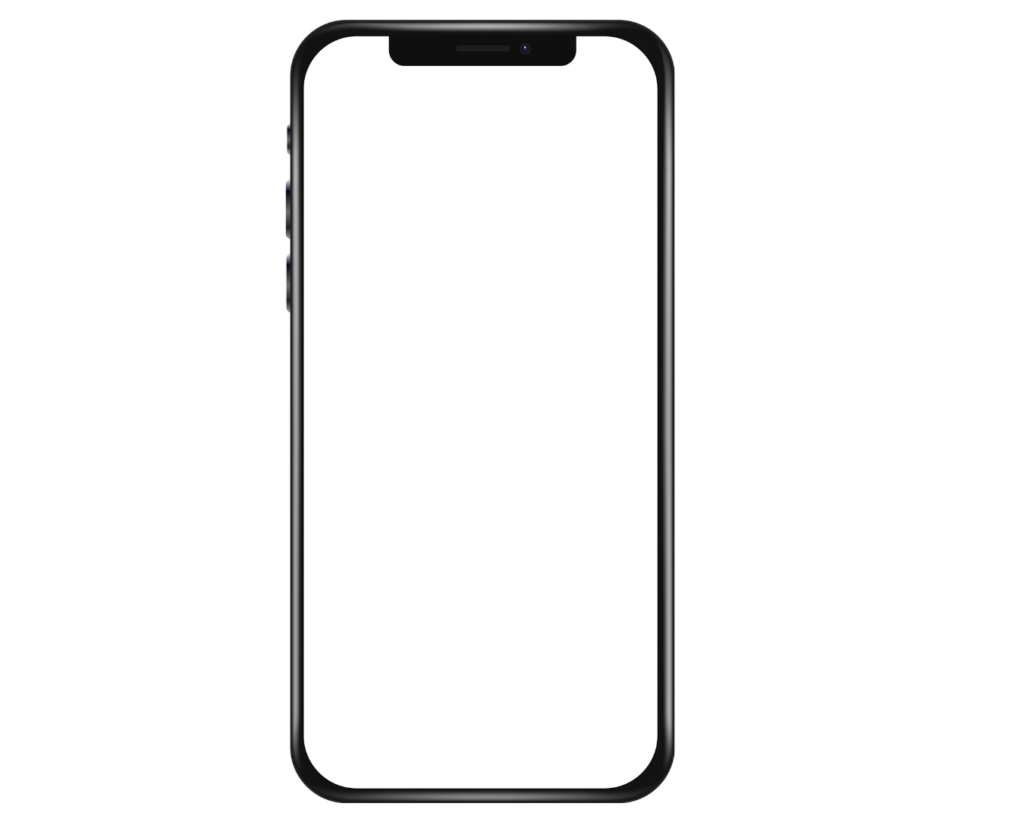
iPhone recording screen

Video placeholder

Upload icon animation

iPhone screen

Battery animation icon

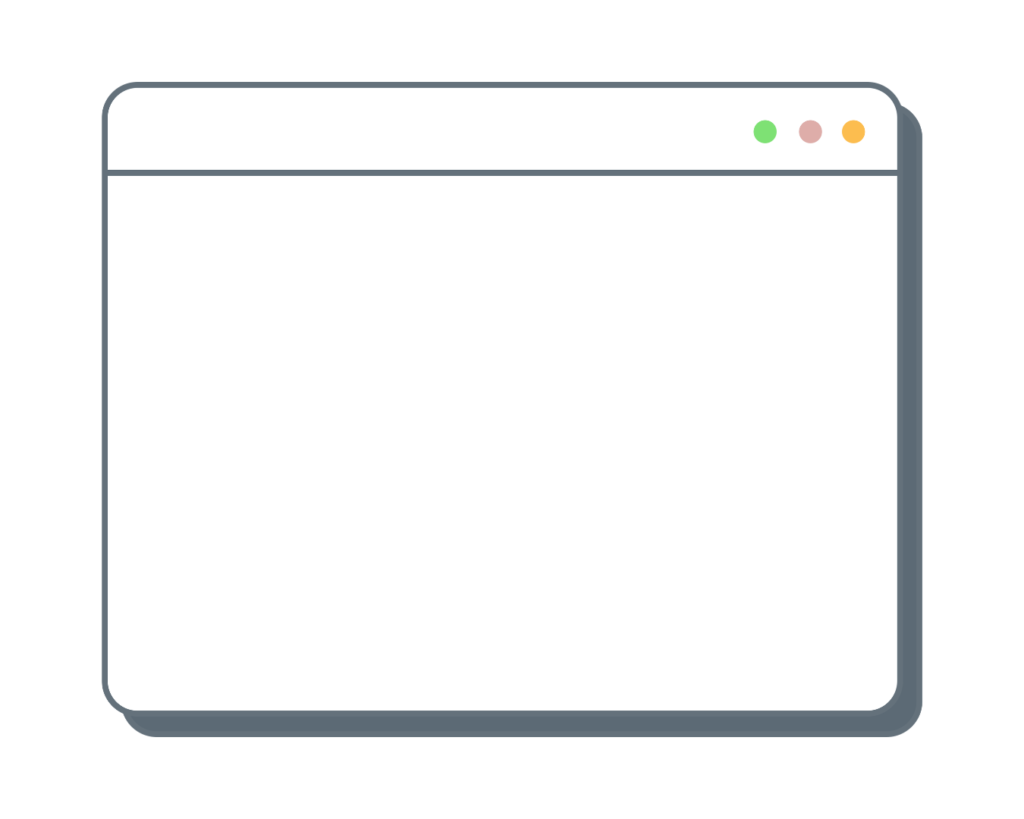
Computer tab overlay

Airplane flying animation.

How to Choose Overlays and Use Them on Purpose

Overlays should support the story and the pacing, not just clutter the screen.

When you use them intentionally, they guide attention, add clarity, and make your edits feel more professional and consistent.

Where overlays & graphics help most

  • Clarity: label what the viewer is seeing, summarize a point, or add context
  • Emphasis: highlight key words, reactions, or details
  • Retention: create small visual changes that keep the viewer watching
  • Branding: repeat the same visual language across videos (fonts, colors, styles)

My process for adding overlays

  1. Decide what needs clarity or emphasis
  2. Choose one consistent style (font + color + placement)
  3. Keep it readable (safe margins, contrast, not too small)
  4. Use motion sparingly (small movement > constant movement)
  5. Reuse the same overlay system across videos for consistency

My Advice When Using Overlays in Content

Overlays should feel intentional, not decorative.

Good overlays can:

  • make an edit feel premium
  • help viewers follow along without effort
  • create a recognizable “style” people associate with you
  • keep attention without overwhelming the screen

When I add overlays, I’m not thinking “what looks cool?” I’m thinking “what makes this moment clearer or more impactful?”

Table of Contents

Locked

Unlock This Section

This section includes downloadable assets, video tutorials, and strategies you can use directly in your content.
Unlock full access to continue.

Get Full Access